A step-by-step on how to Mass Assign Users and Teams to different parts of Harvests.
Table of Contents
When to use Mass Assign
There are two main use cases for when to use Mass Assign.
First, and most common, is when your cultivation has certain kinds of Events that are always assigned to the same cultivator or Team. An example might be having a group of employees that only deal with the veg tasks.
If this is the case, you can then Mass Assign only those veg tasks to those Users that will always do them, with a few clicks.
Second, Mass-Assign is extremely useful for large cultivations with many employees. If you run a 200k sqft. grow, clicking on every Events to assign a user, daily, is not efficient.
So, instead you can assign multiple Events to a user, or Team, for multiple Harvests by Phase, Date Range, or Tag (see Templates for more info on Tags).
Two examples are below. For both examples, we have a Veg Team created (click here to see how to set up a Team), that we want assigned to all Veg Events.
We want to assign the Veg Team to only the Veg Events for each of the Harvests, all at once.
Mass Assign by Phase
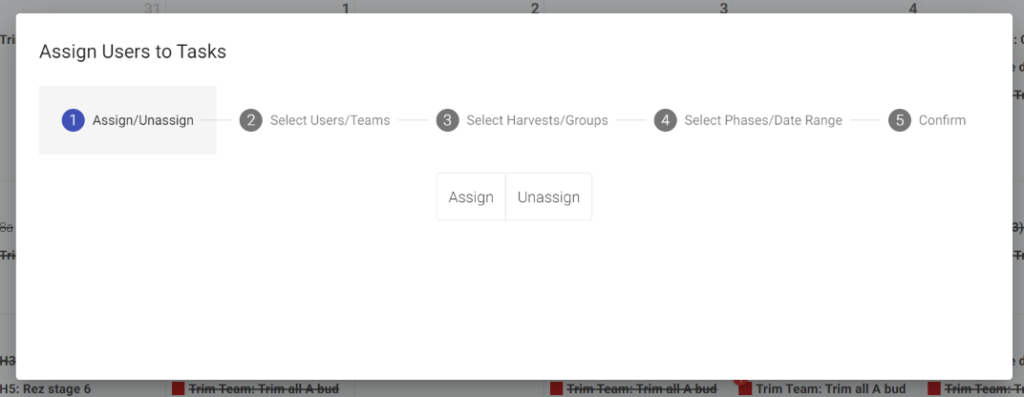
For the first example, we want to assign our Veg Team to all Phases related to Veg work. First, you'll choose to assign, or unassign Events. Unassigning Users comes in handy when an employee no longer works at the grow, and you'd like to get them off the schedule completely. For this example, we'll choose Assign however:
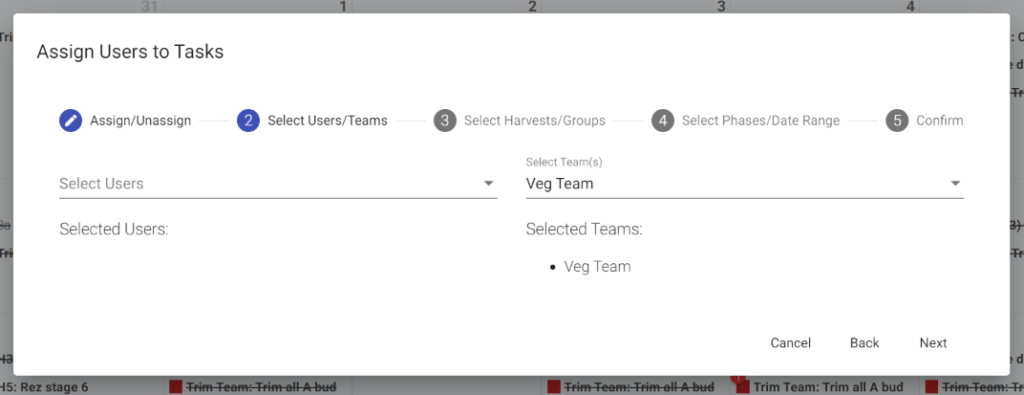
Step two is to choose the Team, or Users you'd like associated with the set of Veg Events. You have the option to choose a combination of both. For this example, we'll choose the Veg Team we created:
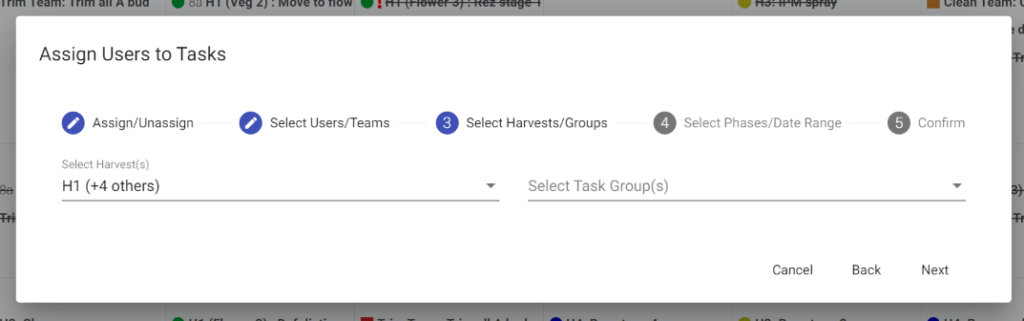
Step three is to choose which Harvests you'd like to assign the Veg Team to the Events in. You can choose one Harvest, multiple, or all of them.
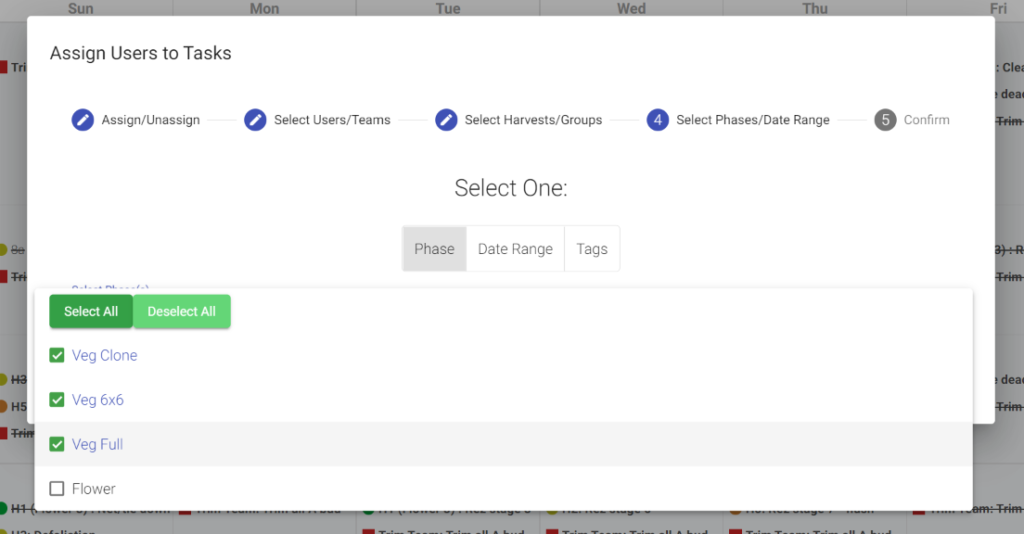
Step four is important. You have three choices for the Harvests you just selected for how to assign Users - by Phase, Date Range, or Tag. For the first example, we'll choose Phase, and select each Phase (referenced from the Template) that are associated with those Veg Tasks.
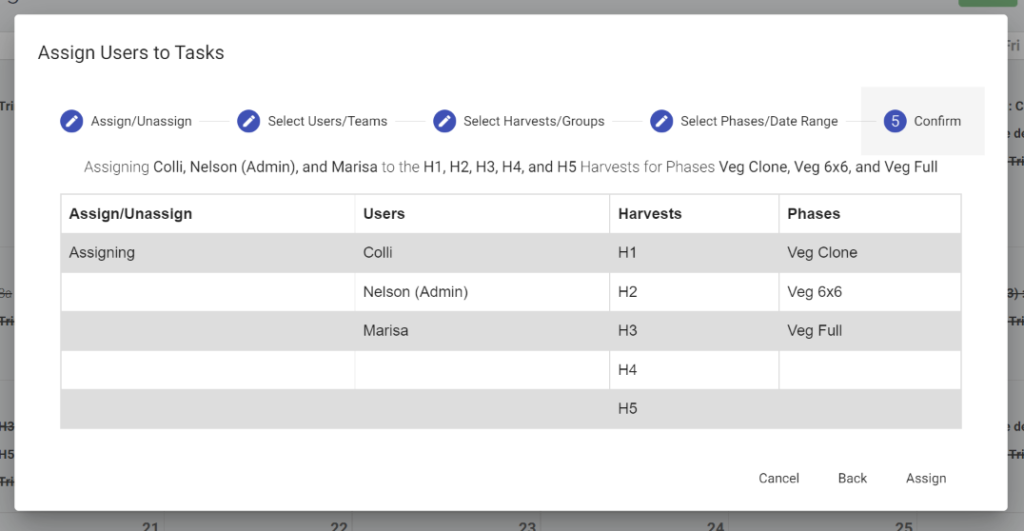
Step five, shows the full selection of what you just chose. Below, you can see we've assigned our three person Veg Team, to five Harvests, and all the Veg Phases within those Harvests:
The real purpose behind Mass Assign is to make it easier for you, the grower, to efficiently get work assigned to each User. Remember, you can't track who is doing what, unless you get every Event assigned!
Mass Assign by Tag
The second example is much the same as the first, except instead of Mass Assigning by Phase, we'll assign our Veg Team to the custom Veg Team Tag.
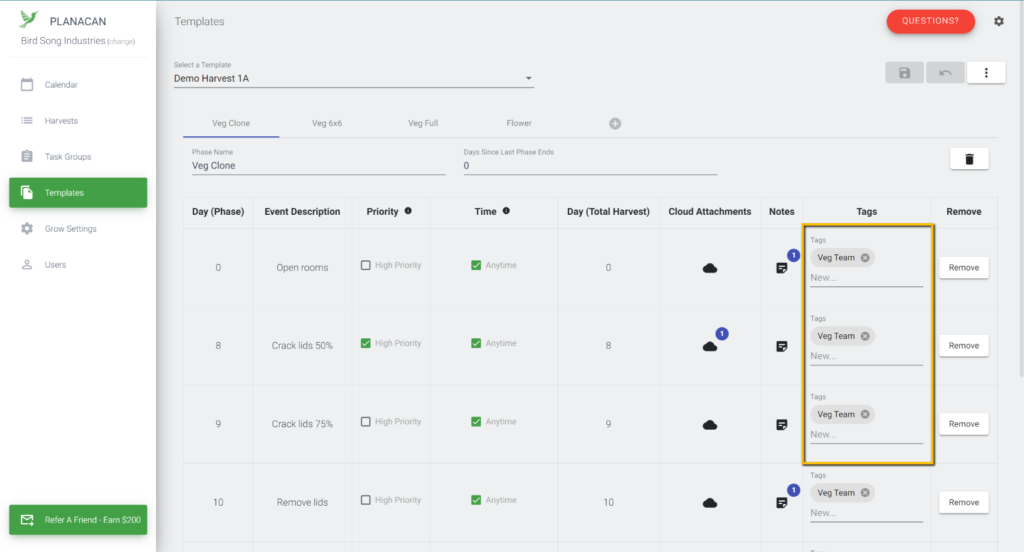
A reminder - Tags are created in the Template screen (see below). For each Event in a Template, you can assign an individual Tag to it. Once a Tag is associated with a Event, you can then Mass-Assign your Teams and Users, to those Tagged Events.
There's an advantage to using Tags over Phases - you have the ultimate flexibility to automatically assign work for multiple Teams, Users, and Harvests for only the exact set of Events you want.