
Change your company name, Time Zone, set up custom push notifications, and more.
Table of Contents
Overview
There are three main things you can do under Company Settings. The first is change the name of your Cultivation's Calendar. Second, you can change your Time Zone. Third, and what we'll spend most of this walkthrough going over, is you can set up custom Push Notifications.
Custom Push Notifications
Everything that happens in the Web app is communicated to our Android and iOS phone applications.
With Push Notifications, If you'd like to notify Users on their phone of what needs to be done during the day, you can set up Push Notifications during the day to alert them.
Below is a screenshot of an already created Push Notification, designed to let all Manager, and Standard User level accounts know how many Events they have assigned to them, each morning.
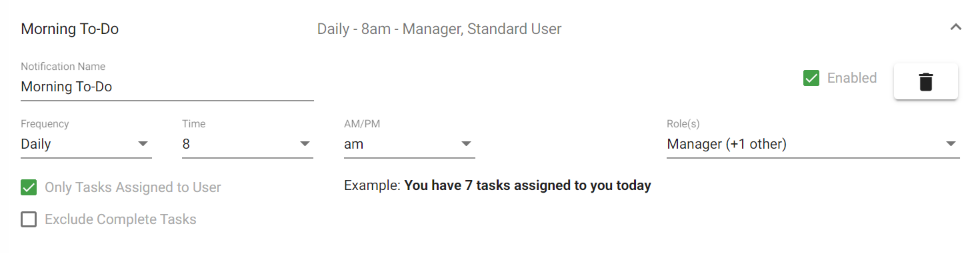
There are multiple decisions to make to craft a Push Notification that relays the information you want.
- Notification Name - identify the type of notification, an example above is for a morning notification.
- Frequency - trigger the notification daily, weekly, or monthly.
- Time - what time would you like the notification to trigger?
- Role(s) - to what levels of user accounts would you like the push notification to go out to?
The last two decisions to make are important - Only Tasks Assigned to User, and Exclude Complete Tasks
- Only Tasks Assigned to User - Checking this box means that the push notification will only show the tasks for the day that are assigned to the specific User.
- Only Tasks Assigned to User - Checking this box means the push notification will exclude complete tasks.
Lastly, There is an example of the Push Notification that is displayed, depending on the choices you made above.
We recommend playing around with this feature. You can set up as many daily, or weekly alerts as you want. Most common, is a beginning of the day, and end of the day Push Notification.